 Streetscape Pro Help
You can access the Advanced Settings by selecting 'Settings' from the ribbon toolbar. When the Preferences window appears, click on 'Advanced' in the menu on the left. You can change the settings by making adjustments here and clicking 'OK'.
The Advanced Settings apply only to the file which you are working on. If you want to change the Program Defaults then click the 'Save' button. If you want to apply the saved Program Defaults to the file that you are working on, click "Retrieve". The original defaults can be restored at any time by clicking Reset. For more information on this see Defaults.
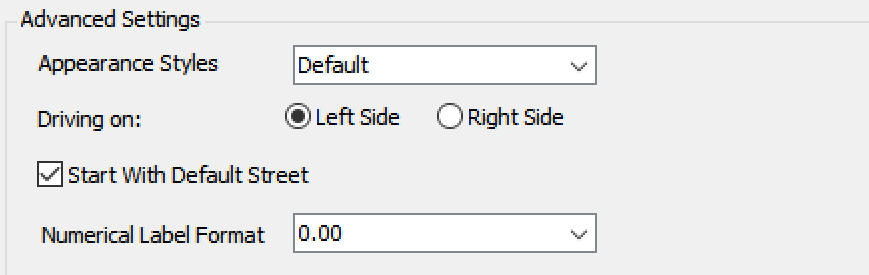
Streetscape Pro is supplied with several 'skins', or themes which you can apply to the program. These do not change it's functionality, but allow you to customize the appearance of the program.
You can select which side of the road vehicles drive on in the country that you are working in. This is 'Left' by default. The UK, India, Japan, Australia and New Zealand all drive on the left. Most other countries in the world drive on the right.
If you change this, then the Direction of all lanes and parking spaces will be adjusted.
By default, Streetscape Pro will open with a simple street with pavements and a vehicle lane in each direction. If you would prefer it to start with a blank file, then de-select this check box and click 'OK'. Please note you will then need to add Streetscape Elements before anything is displayed in the Display Window.
Choose how you want numerical values to be displayed. For example if you choose '0.00' then it will always display values with two decimal places even if it is a whole number (3.00m). If you choose '0.##', then it will display numbers up to two decimal places if not a whole number.